Prior to generating renewals, confirm your board approved price book has been submitted to saleforcehelp@cristoreynetwork.org - if you try to create renewal opportunities without pricing, the records created using the process outlined below will be blank of FTE and amounts!
Renewal Generator
Step 1: Login and navigate to CWSP Setup through the app picker in the top left corner of your screen, then select the Renewal Generator tab from your toolbar
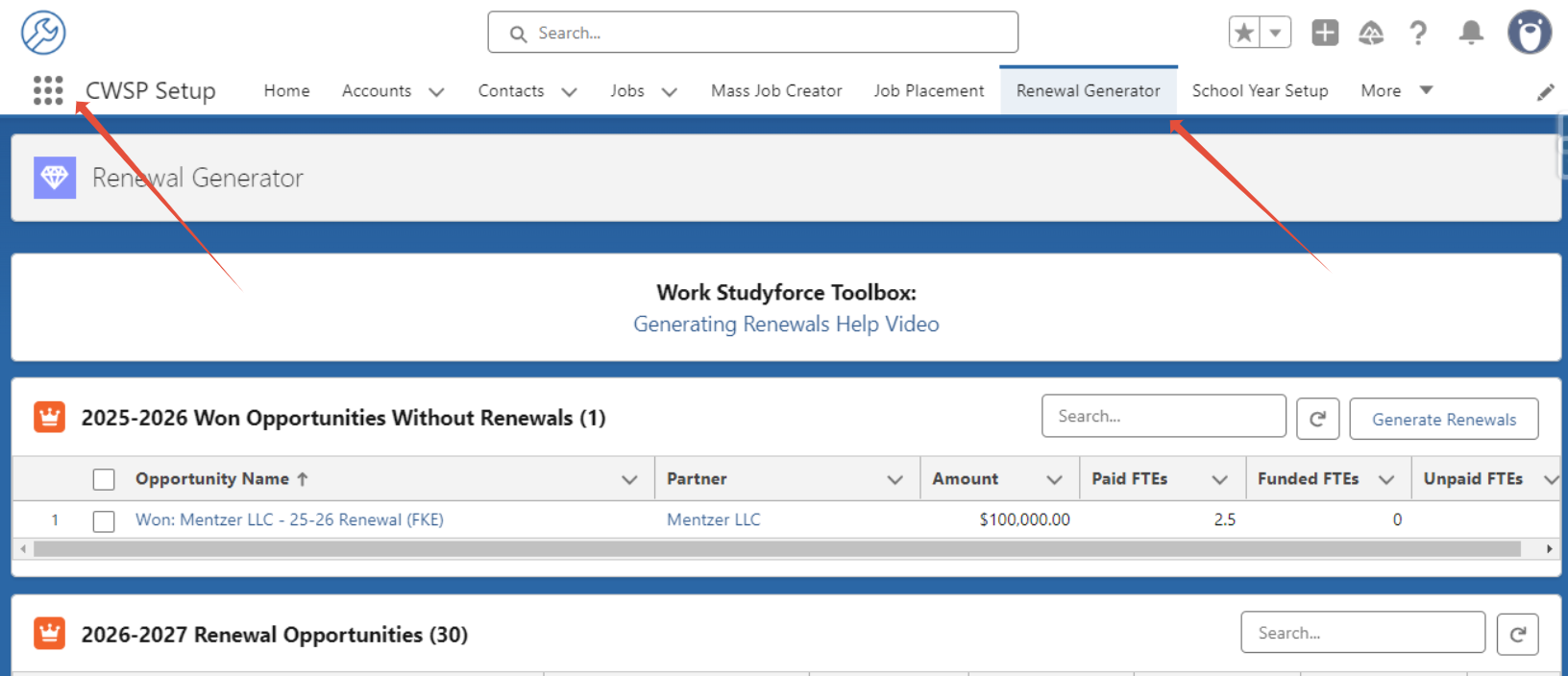
Step 2: Select each row, or all rows in the header check box, of Won Opportunities Without Renewals that are needed for next school year's opportunities.
Step 3: Click Generate Renewals - this will prompt you to create 25 renewal records at a time. Once this has run completely, the new records will list on this screen under Renewal Opportunities.

Congratulations! Renewals are now available on your dashboards and reports.
If you have any questions, please emails salesforcehelp@cristoreynetwork.org
Was this article helpful?
That’s Great!
Thank you for your feedback
Sorry! We couldn't be helpful
Thank you for your feedback
Feedback sent
We appreciate your effort and will try to fix the article